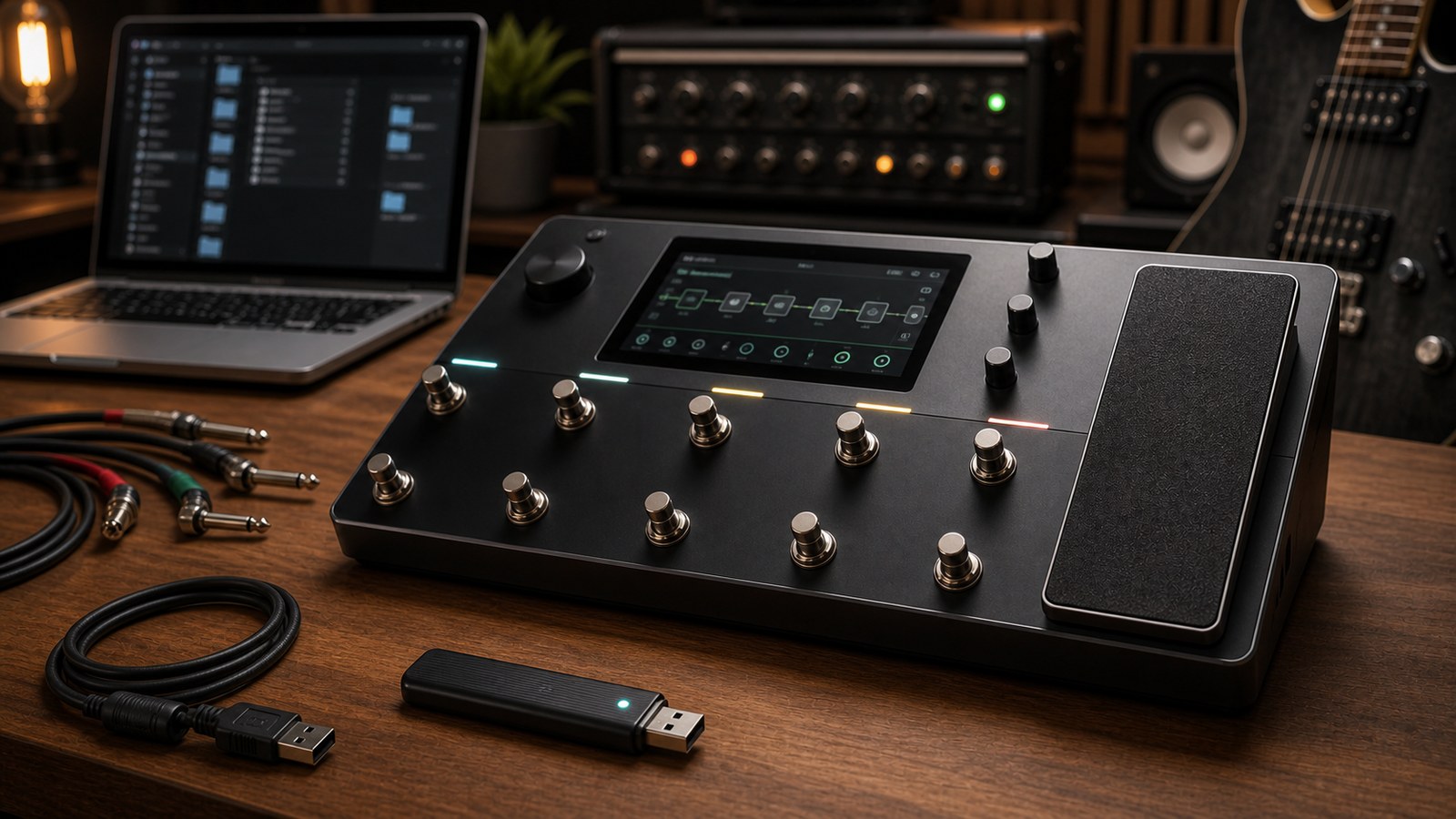
Buying a preset pack is the easy part. Getting it onto your Quad Cortex without scrambling existing tones, breaking IR references, or losing track of what is where takes a few minutes of preparation. Here is the way we recommend, refined over hundreds of installs.
Before you start
Two things to do before you touch any files.
First, back up your current preset library. The Quad Cortex makes this easy through Cortex Cloud or via USB to your computer. Do it. We have lost count of the people who skip this step and overwrite a tone they spent a tour dialling in.
Second, update your firmware. New preset packs often rely on features in recent firmware updates, including specific amp models, capture engine versions, and routing options. Loading a 2026 preset onto 2023 firmware is the fastest way to spend an afternoon confused.
What is in a preset pack
When you download a pack from us, you will typically get:
- A folder of preset files, one per tone, with a
.corextension or in the format your Quad Cortex expects. - A folder of captures the presets rely on.
- A folder of impulse responses (IRs) if the pack uses third-party cabs.
- A README listing which captures and IRs each preset uses, so you can troubleshoot if something goes missing.
Open the README first. Always. It tells you in plain language what depends on what.
Method one: USB drive
This is the most reliable method, and the one we recommend if you are installing more than two or three presets at once.
- Format a USB drive as exFAT or FAT32. The Quad Cortex is fussy about NTFS-formatted drives.
- Copy the entire pack folder onto the drive, keeping the structure intact.
- Plug the drive into the back of the unit.
- From the home screen, swipe down to access the file browser, then navigate to the USB drive.
- Use the unit’s import flow to pull captures, IRs, and presets across in that order. Captures and IRs first matters, because presets reference them.
If a preset reports a missing capture or IR after import, go back and import the missing dependency, then reload the preset.
Method two: Cortex Cloud
If your pack vendor has uploaded the presets to Cortex Cloud, the install is essentially one tap per preset. Open the Cloud, find the pack, and download what you want directly to your unit. Captures and IRs come along automatically when they are linked to the preset.
The Cloud workflow is convenient, but two caveats. Some IRs cannot be redistributed for licensing reasons, so paid packs sometimes still ship those over USB. And if you are working on tour Wi-Fi, a slow connection makes USB dramatically faster.
Method three: Direct USB to computer
The Quad Cortex appears as a removable drive when you connect it to your computer over USB. Some users prefer to drag preset and capture files straight onto the unit’s filesystem. This works, but it bypasses the unit’s import logic, so dependency resolution is on you.
Use this method only if you are comfortable with Quad Cortex file structure. For most people, USB drive or Cloud is safer.
Folder organisation that scales
Once you start collecting presets, the default flat list becomes unmanageable. Spend ten minutes setting up folders and you will save yourself hours later.
A structure that holds up well:
- One folder per pack you bought, kept untouched as a reference.
- One folder per band, project, or song you are actively working on, with the current versions of presets in active use.
- One folder for live sets, organised in setlist order, with scenes pre-built for each song.
Keep the original packs separate from your working presets. If you tweak a preset and want to revert, you can grab the untouched original from the pack folder.
Common problems and fixes
The preset loads but sounds wrong. Check the cab IR. Either it did not import, or it imported under a different name and the preset is pointing at a fallback. The README will tell you which IR the preset expects.
A capture block shows as empty or generic. The capture did not import. Re-run the import for the captures folder, then reload the preset.
The unit reports the file format is unrecognised. You probably copied a .zip or .rar directly onto the USB drive without extracting it first. Unzip the pack on your computer, then copy the unzipped folders.
Volume is dramatically louder or quieter than your other presets. This is normal and not a fault. Different preset creators set output trim differently. Adjust the preset’s output level, save, and move on.
A note on backups
Once you have a library you actually like, back it up monthly. The Quad Cortex is reliable, but firmware updates occasionally do not behave on every unit, and a fresh backup turns a bad afternoon into a five-minute restore.
Up next
Now that you can get presets onto your unit cleanly, the next post compares the Quad Cortex hardware to Neural DSP’s plugin range and explains when each makes more sense for the work you are doing.