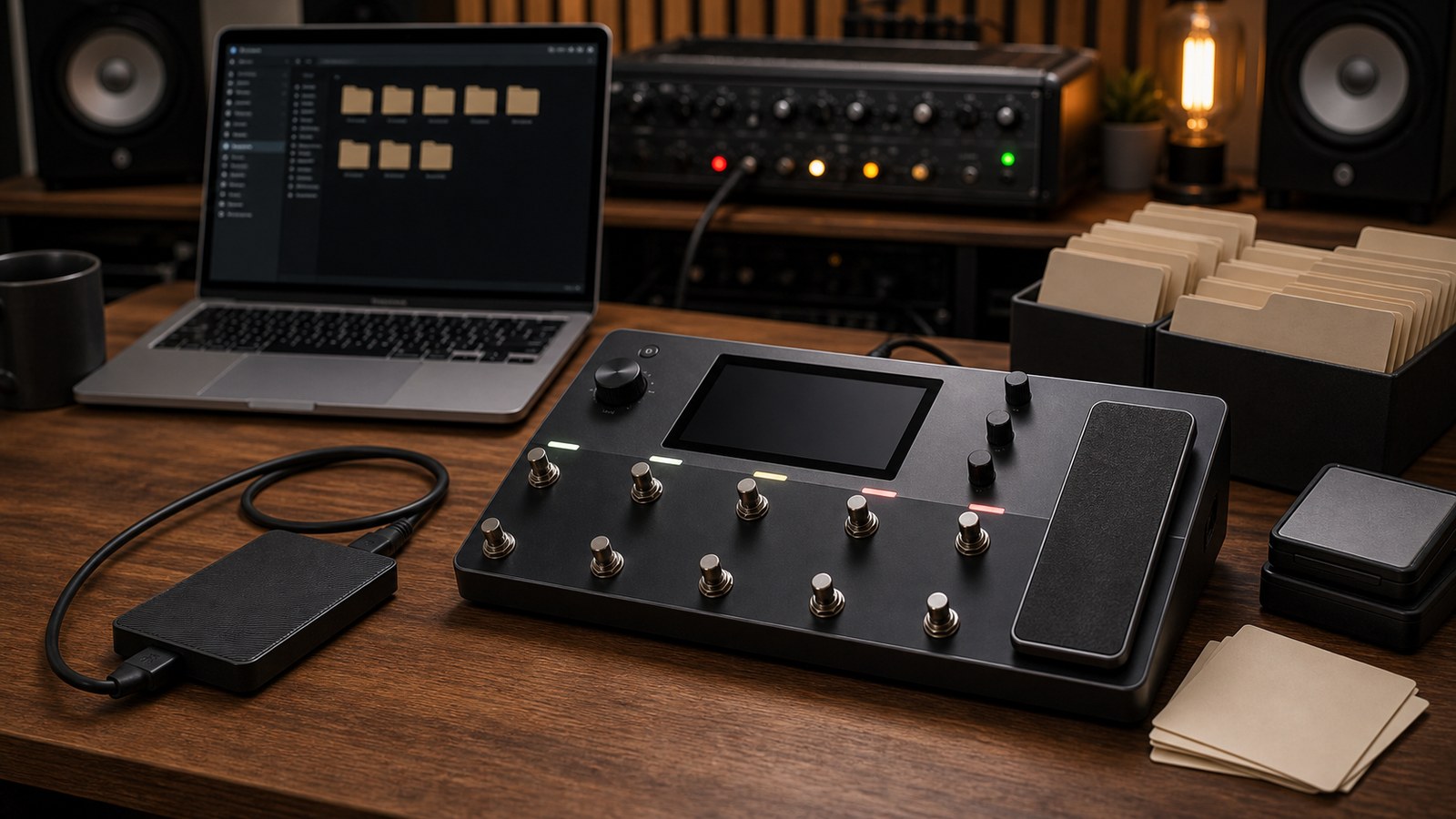
A Quad Cortex preset library represents real time. Hours of dialling. Hours of capturing. Money spent on third-party packs. And eventually, if you do not back it up, an unfortunate firmware update or hardware issue that costs you all of it.
This post is about the boring but essential discipline of keeping your library safe and findable.
Why this matters more than people think
Most Quad Cortex users do not back up regularly. They get away with it for years, and then one of these happens:
- A failed firmware update corrupts the unit’s storage
- A hardware fault requires a factory reset
- A new firmware version handles a preset format change clumsily
- The unit is stolen, dropped, or damaged
- A simple mis-tap deletes a preset library
You cannot insure against rebuilding a hundred presets from memory. The only insurance is current backups.
What to back up
Three categories of content live on the unit:
- Presets. The full chain configurations.
- Captures. Models of amps and pedals you have made yourself or downloaded.
- IRs. Impulse responses for cab simulation.
- Setlists. The order and grouping of presets for live use.
- Global settings. Input gain settings, output configurations, MIDI mappings.
All five are worth backing up.
Backup methods
The Quad Cortex offers two backup paths.
USB drive backup. Plug a formatted USB drive into the unit, navigate to the backup option in the system menu, and the unit writes the entire library to the drive. This is the most reliable method and the one we recommend for full backups.
Cortex Cloud sync. Your library can be synced to your Cortex Cloud account. This is convenient but depends on Neural DSP’s servers and your internet connection. Treat it as a secondary backup, not your only one.
Use both. Local USB backup as primary, Cortex Cloud as secondary, refreshed regularly.
How often to back up
Recommended cadence:
- After any session where you built or significantly modified presets. A backup right after the work captures it before you forget the changes.
- Monthly, regardless of activity. Even if you are not actively building, captures and IRs accumulate, and a routine backup catches them.
- Before any firmware update. Always. Firmware updates are usually clean, but the small risk of issues makes a fresh backup essential.
- Before any tour or run of important shows. A pre-tour backup is a small task. Recovering a corrupted library mid-tour is not.
A simple cadence: back up to USB on the first of every month and after any major session. Sync to Cloud as a secondary. Done.
Where to keep backups
A backup that lives only on the same desk as the unit can be lost in the same fire, theft, or flood. We recommend:
- One USB drive in your studio or rehearsal space. Convenient, fast access.
- One USB drive at home or in a different location. Geographically separate.
- Cortex Cloud as a third copy, off-site and managed by Neural DSP.
This is overkill for casual users. For working musicians whose income depends on the rig, it is sensible.
Organising your library
A flat list of 256 presets in alphabetical order is unmanageable. Spend an hour setting up folders and you save yourself hours of scrolling later.
A structure that scales:
- By project or band. One folder per project you work on, containing the presets currently in use for that project.
- By genre. Separate folders for “Metal”, “Cleans”, “Acoustic”, “Bass”, and so on, for general-purpose presets not tied to a specific project.
- By pack. Each third-party pack you buy gets its own folder, kept untouched as a reference. If you tweak a preset from a pack, save the tweak in your project folder, not the pack folder.
- Live setlists. Setlist mode is your live folder structure. Use it.
The reason for keeping pack folders untouched is that you sometimes want the original version of a preset for comparison or restoration. If you have edited the original in place, that comparison is gone.
Naming presets so you can find them
A few naming conventions that pay off:
- Project prefix. “TS_” for Tan Shadows, “MWM_” for Midweek Mass, etc. Lets you sort by project at a glance.
- Tone descriptor. “Rhythm Heavy”, “Lead Sustained”, “Verse Clean”. Anyone reading your library should understand what each preset does without loading it.
- Version suffix. “v2”, “v3” if you have iterations. Lets you keep the previous version while working on a new one.
- Date suffix occasionally. “2026-04” if you want to remember when you built a preset.
Avoid clever or cryptic names. “MFGRDS3” is impossible to remember in two months. “Lead Phaser Bridge” is obvious.
Trimming the library regularly
If you are not careful, your library accumulates duplicates, abandoned drafts, and one-off experiments that you never use again. Every quarter or so, prune:
- Delete drafts you have not loaded in three months
- Consolidate duplicates by keeping the most recent version
- Move project presets out of the live setlist if you are no longer playing those songs
- Move third-party pack presets to their pack folder if you have copied them out for editing
A leaner library loads faster, saves faster, and is easier to navigate live.
Versioning before major changes
Before making any significant change to a working preset, save a copy first. The Quad Cortex makes this trivial. The pattern:
- Load the preset you want to modify
- Save it as a copy with a new version suffix (“Lead Phaser v2”)
- Modify the copy, not the original
- Once you are confident the new version is better, you can delete the old one
This habit has saved more presets from ill-advised experiments than any other practice.
Documenting non-obvious presets
For your most-used presets, a one-line note in your phone can save you debugging time later. Notes that earn their keep:
- “Output level is 3 dB hotter than other presets, do not change”
- “Cab IR depends on third-party pack X, reload pack if missing”
- “Scene 4 only works after engaging tap tempo”
These notes do not need to be elaborate. Just enough to remind you of the small surprises.
What to do when you actually lose a backup
If something does go wrong:
- Check Cortex Cloud first. Your most recent sync may still be there.
- Check your USB backups, starting with the most recent.
- If the unit’s storage is corrupted but the unit boots, copy whatever is recoverable to a USB drive before any further changes.
- Restore from backup, then verify a few key presets load correctly.
- Make a fresh backup once you are confident the restore worked.
The first time you do this, you will be glad you read this post and made backups.
In our next post we go deep on Cortex Cloud, which is more than just a backup destination. It is the social layer of the entire Quad Cortex ecosystem.
Backing Up and Organising Your Quad Cortex Presets