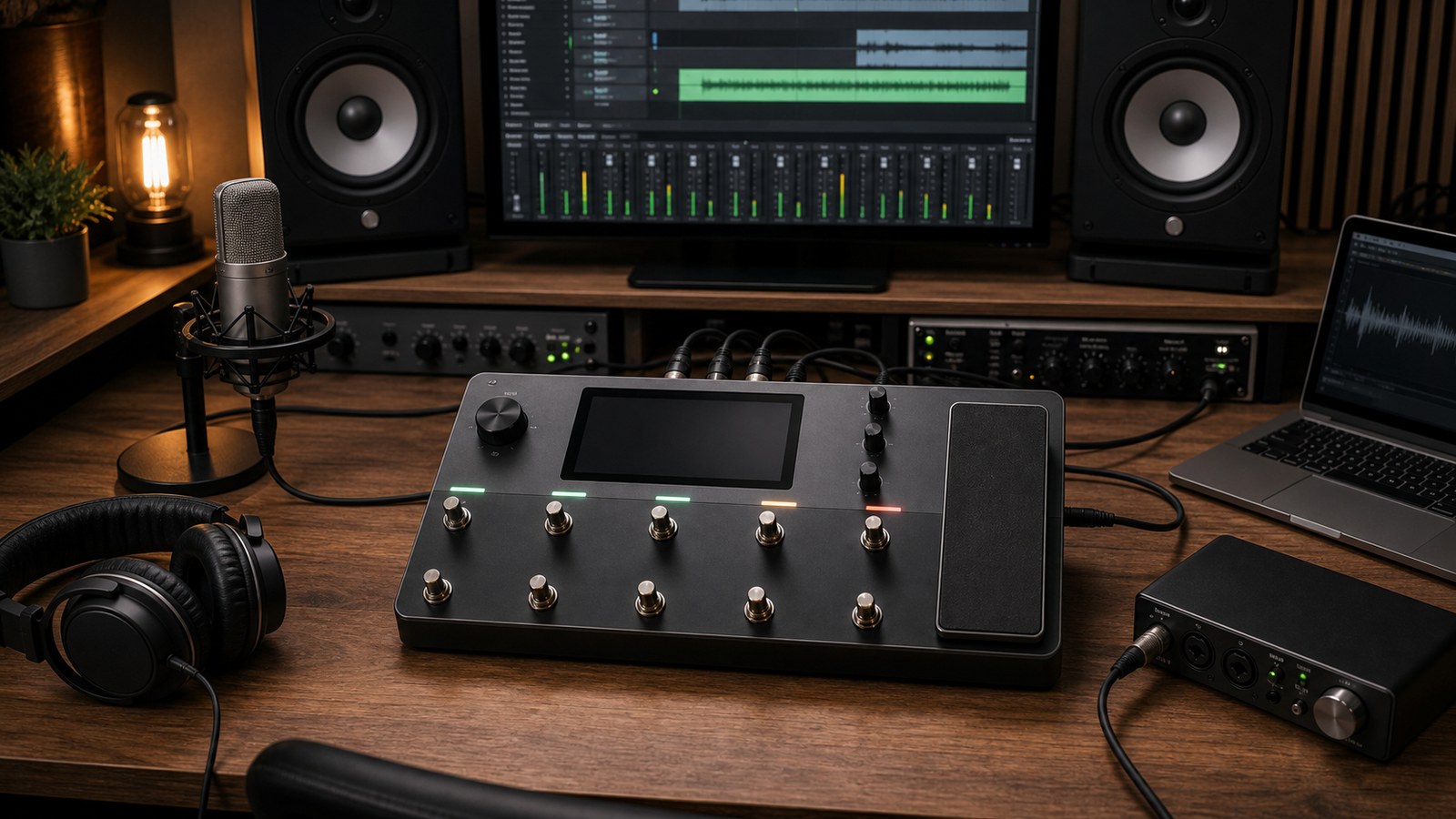
If you bought a Quad Cortex for guitar tones and you also have a separate audio interface, you are likely paying for two boxes that overlap heavily. The unit’s converters and channel count are good enough to run a small home studio on their own. Here is how to set the Quad Cortex up as your primary interface and what to be aware of.
What the unit gives you
Connected over USB to a computer, the Quad Cortex appears as an audio interface with eight input channels and eight output channels. The exact channel mapping varies by firmware, but typically includes:
- Two channels of dry guitar from the unit’s input
- Two channels of processed (wet) guitar from the preset’s output
- Two channels of physical inputs (FX return jacks on the back)
- Two re-amp output channels to send signal back through the unit’s processing
Sample rates up to 96 kHz are supported. The internal processing runs at 48 kHz, which is the rate we recommend for projects unless you have a specific reason to be at 44.1 kHz or 96 kHz.
What it does not give you
- Phantom power for condenser microphones. The unit does not have XLR microphone preamps with 48V phantom power. If you record vocals or acoustic guitar with condensers, you still need a separate preamp, even if its output then routes into the unit’s FX returns.
- A monitor controller knob. The unit has volume controls, but they are not as ergonomic as a dedicated studio monitor controller for switching between speakers and headphones.
- Talkback. Traditional studio interfaces have a talkback channel for communicating with someone in a recording booth. The Quad Cortex does not.
For a one-room home studio with one guitarist tracking through the unit, plus the occasional acoustic instrument or vocal through an external preamp into the FX returns, the Quad Cortex is enough.
Driver setup
On macOS, the Quad Cortex appears as a Core Audio device with no driver installation required. Plug it in, select it as the input and output device in your DAW, and you are working.
On Windows, install the latest ASIO driver from Neural DSP. Do not use generic Windows audio paths for tracking. The ASIO driver is the only path that gives you low-latency monitoring and stable performance.
In both cases, the buffer size is set in the DAW, not on the unit. Lower the buffer for tracking, raise it for mixing.
Routing for everyday tasks
A few common scenarios and how to set them up.
Tracking guitar. Use the wet-and-dry split described in our direct recording post. Two tracks armed: one for the processed signal, one for the dry signal. Monitor through the unit’s headphone out for zero latency.
Tracking acoustic guitar with a condenser. Run the condenser into your separate preamp. Send the preamp’s output into the unit’s FX return jacks. The FX returns appear as audio interface channels in your DAW. Record from those channels directly.
Re-amping a previous take. Send the dry signal track from a previous session out the unit’s re-amp output channels. The signal returns into the unit’s input, gets processed by whichever preset you have loaded, and comes back into the DAW on the wet channels. You can re-track the same performance through any tone in your library.
Tracking other instruments. Synthesisers, drum machines, or anything else with a line output runs into the FX returns. Bass guitar can also run direct into the unit’s main input and use a bass preset, or split into a DI plus a bass preset for flexibility.
Mixing through the Quad Cortex
The unit’s converters are excellent. Mixing through them is fine for most home studio applications. The main consideration is the routing back to your DAW.
If you want to use the unit’s amp blocks in a mix as effects on existing tracks, the cleanest way is:
- Set up an aux send in your DAW
- Route the aux to the unit’s re-amp output
- Set the unit to a preset that processes the incoming signal
- Bring the wet signal back into the DAW on a return track
You can use this for guitar that was already tracked through a different rig, for tonal experiments on a track that needs a different feel, or even on non-guitar sources for creative effect.
Headphone monitoring
The unit’s headphone output is loud and clean. For most home studios, it replaces a dedicated headphone amp.
One detail: the headphone output mirrors the unit’s main outputs by default. If you want a different mix in headphones than at your monitors, you may need to use the unit’s secondary outputs and route a separate mix there from your DAW. This is more setup than most people need, but it is possible.
Latency expectations
With USB at 64 samples buffer size, round-trip latency through the unit is in the low single-digit milliseconds. This is genuinely fast and matches or beats most dedicated audio interfaces in this price bracket.
For tracking, you should be monitoring through the unit directly, not through your DAW, so you experience zero latency on guitar regardless of the DAW buffer.
For other instruments routed through the FX returns, the DAW buffer applies. Lower the buffer to 64 or 128 for tracking those, then raise it for mixing.
Backing up DAW projects with Quad Cortex content
Two things worth saving:
- The session file from your DAW
- A backup of the preset (or presets) used during tracking
The reason: if you re-open the project in two years and the preset has been modified, your previously tracked wet guitars are still fine because they are audio. But any future re-amping you want to do will need the original preset to match. Save a copy of the preset alongside the project file.
When to keep a separate interface
If you regularly record:
- Multiple condenser microphones simultaneously (drum kits, full vocal sessions, ensemble work)
- Workflows that require talkback or extensive monitor control
- Sessions with separate musicians needing independent monitor mixes
Then a dedicated audio interface still has a place. The Quad Cortex is a strong primary interface for solo guitarists working at home. It is not a replacement for a Universal Audio Apollo or RME Babyface in a tracking studio.
In our next post we move from tracking infrastructure to a specific instrument that the Quad Cortex handles surprisingly well: bass guitar.
Using the Quad Cortex as Your Studio Audio Interface